Last updated 09/15/2026
If you're an artist, musician, or other creative person, you'll usually just be uploading your work to Google Drive or some other platform, then someone else will put it in the game for you.
I myself am not an artist, but it feels strange that assets are put in the game, then artists will only really get to see them through videos programmers make or in the final game build.
Why not be able to run the game yourself and see your assets in action? I think that's really valuable especially during the game's development, so you can comment on whether that's what you intended!
This guide will help you grab your video game project from the internet, and update it when you need to!
The project that you're working with is likely hosted on an external website called GitHub, unless you're working in a very different game engine (e.g. Roblox Studio)
Go ahead and download GitHub Desktop
You will be making a copy of the game project and storing it on your personal computer. What GitHub Desktop does is check and let you update the project (pulling new changes)
The link should look something similar to https://github.com/USERNAME/PROJECT_NAME, for example, https://github.com/UVASGD/spring-2025-lucid-nightmares. Ask a director or someone else if you're not sure.
Please note that if you're just copying the project to your computer, you will NOT need a GitHub account.
Open GitHub Desktop.
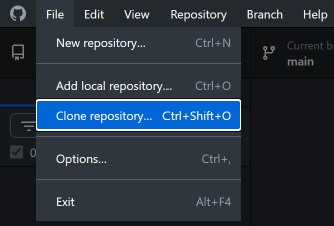
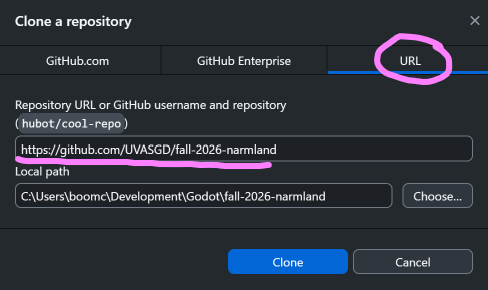
In the top-left, click File -> Clone Repository. Then in the menu that appears, click the URL tab and enter the repository link you found in Step 1.
The Local Path specifies where the project files will live on your computer.
Once you're done click Clone and GitHub Desktop will download the project.
This will depend on what game engine the team is using.
Godot
For Godot, first figure out which version of Godot the team is using. If you don't know you can always just default to the latest version.
Download Godot at https://godotengine.org/
Extract it and open, then click "Import" in the top left.
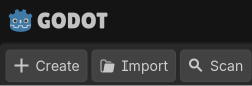
Click the Import button
Find where GitHub Desktop downloaded the project, then double-click the project.godot file.
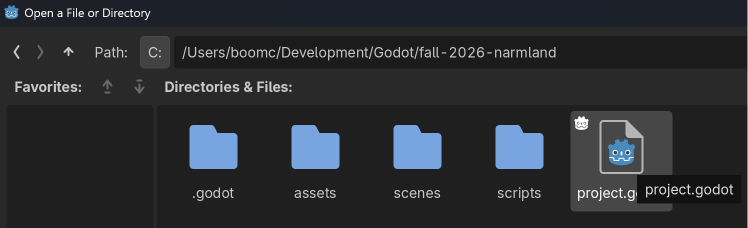
project.godot
Then you should be in! To run the project you can click the play button in the top right, but you may need to reach out to someone in order to run the right scene, especially if the game is still undergoing development.
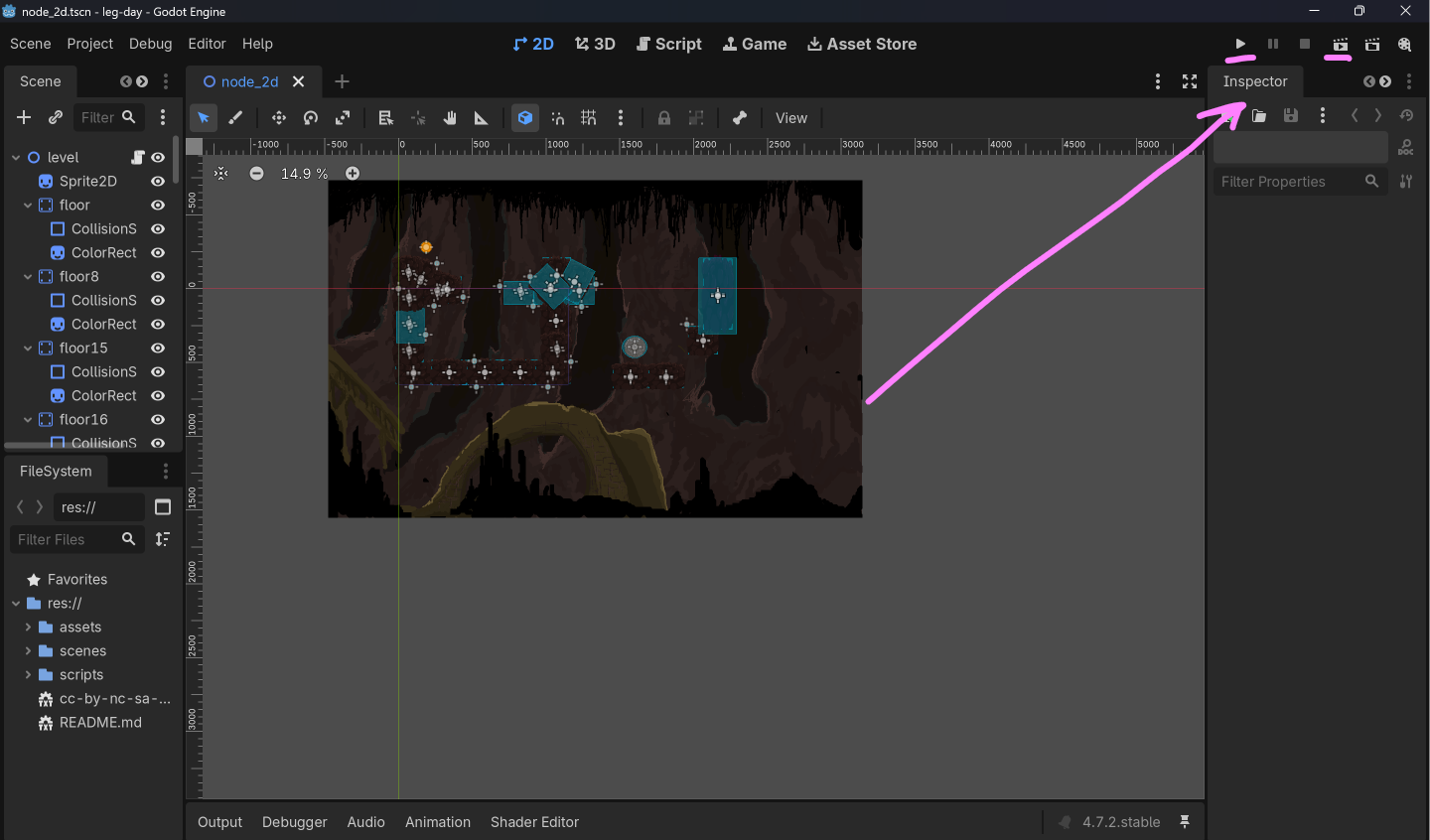
Godot Editor
Unity
Download Unity at https://unity.com/download. You'll have to make an account. Installation takes a while!
Once you can load up the Unity Hub, click Add -> Add Project from disk
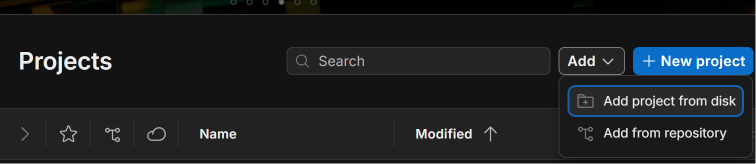
Add -> Add Project
Locate the folder with the project that GitHub Desktop downloaded, then click "Open" with it highlighted.
Click on the project if it doesn't open automatically, but then you should be in! To run the project you can click the play button at the top, but you might need to reach out to someone in order to run the right scene, especially if the game is still undergoing development.
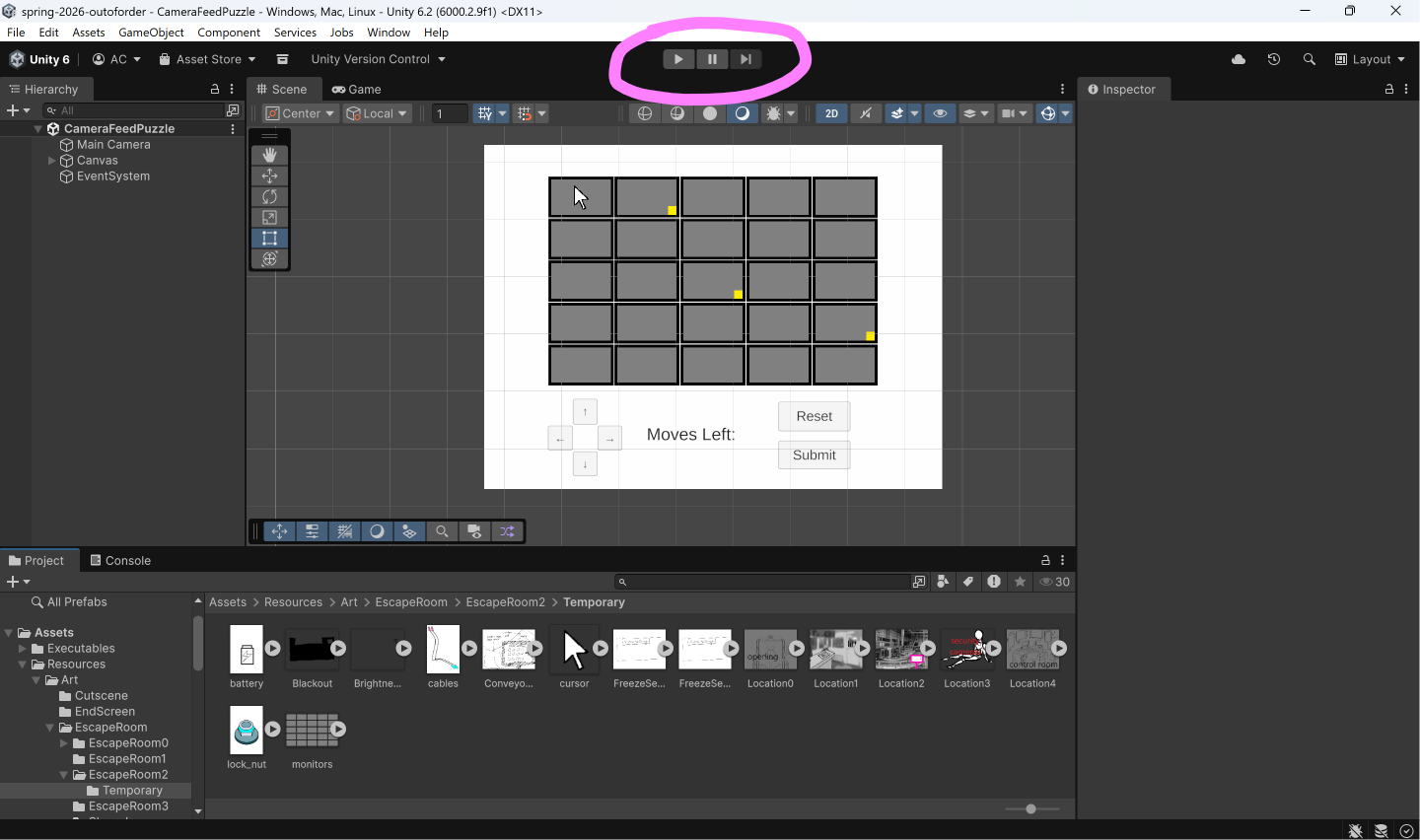
Unity Editor
So you can open the game and run it? That's great!
But when someone updates the project on GitHub, you'll need to pull the changes from the Internet.
This is done in two clicks. Head back to GitHub Desktop, select the correct repository, and click Fetch Origin

Fetch
If nothing happens to the button then your project is up to date. But if there is something new that your copy of the game doesn't have yet, then it will change to Pull Origin
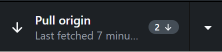
Pull
Click that and your project will automatically be updated!
I won't cover making changes to the project and pushing it to GitHub here. If you're interested in that, you might want to see the other guides on Git, or the official documentation on GitHub Desktop.
Good luck!